Fabaio - Conversational AI Copilot
1. Overview
Fabaio is the conversational AI engine of the Fabrix.ai platform - an intelligent, tool-aware copilot designed to understand natural language, execute operational tasks, automate workflows, and provide deep insights across IT, Cloud, AIOps, Observability, Security, and DevOps environments.
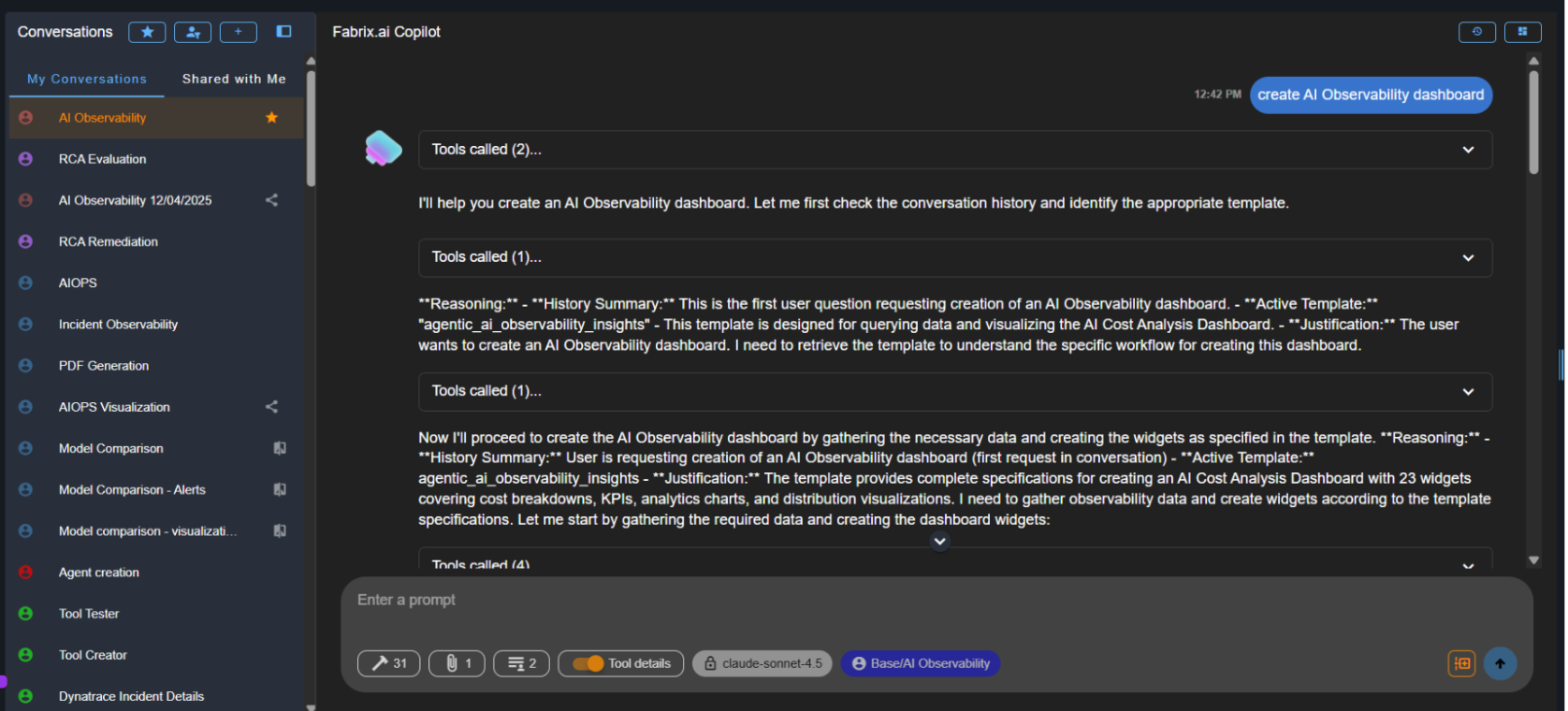
Fabaio transforms everyday language into actionable operations and seamlessly interacts with enterprise systems through tool calls, agents, workflows, and contextual reasoning. The interface features a sidebar for managing conversations and a main chat area where Fabaio displays its reasoning process, tool calls, and responses.
Key Characteristics
- Tool-Aware Intelligence - Automatically identifies and invokes the right tools, APIs, and services needed to complete tasks
- Context-Aware Reasoning - Maintains conversation context and leverages historical data to provide relevant responses
- Multi-Domain Expertise - Operates across IT operations, cloud infrastructure, observability, security, DevOps, and AIOps
- Workflow Automation - Orchestrates complex multi-step workflows and agent interactions
- Enterprise Integration - Seamlessly connects with existing tools, databases, APIs, and platforms through MCP (Model Context Protocol)
2. Agent Interaction Bar – Prompts, Tools & Execution Controls
Situated at the base of the interface, this control bar is packed with essential utilities designed to facilitate, enrich, and accelerate user-AI interactions.
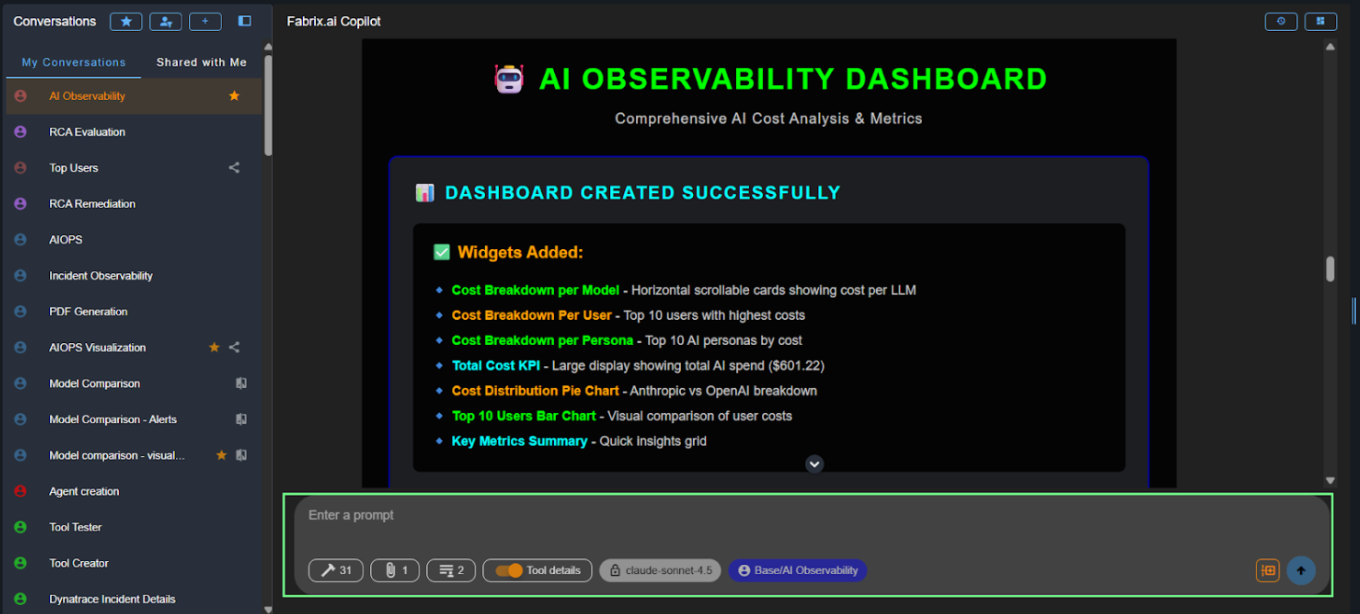
The agent interaction bar provides quick access to various controls and settings that enhance your interaction with Fabaio.
2.1 ✏️ Prompt Input Box
This is where the user types messages, instructions, or task descriptions.
- Multiline input - Supports multiline input for longer messages and instructions
- Auto-expand - Automatically expands while typing to accommodate longer content
- Natural language - Accepts plain natural language without requiring specific syntax or commands
2.2 🔨MCP Tools Panel
The MCP Tools panel provides a complete view of all Model Context Protocol (MCP) tools that the selected conversation has access to. These tools come from the project and persona chosen when the conversation was created.
- Panel contents - Clicking the hammer icon opens a modal displaying all MCP tool categories, every tool available within those categories, tool descriptions, capabilities, required parameters, and which AI Project the tool belongs to
- Context-aware - Only tools relevant to the conversation's project and persona are shown
- Debugging utility - Helps verify which tools the assistant can use and understand why certain operations are or aren't possible
Tip
For information on how to build and create MCP tools, see the Toolsets Guide.
2.3 📎 Cached Documents
Cached Documents represent all files, reports, summaries, or context assets that the AI has access to while generating responses. These documents act as the knowledge base for the conversation and can be dynamically updated or replaced by the user.
- What users can see - List of all cached documents grouped by categories, each document's name and internal reference ID, preview of file contents (HTML, JSON, CSV, text, summaries, etc.), and whether the document was generated by the AI or uploaded by the user
- Upload new documents - When adding a new cached document, users can choose between two input methods: Upload File (attach supported files directly from device - useful for reports, HTML templates, configuration files, CSV/JSON data, or any long-form structured text) or Add via Text (paste raw text directly into editor - useful for quick notes, prompt instructions, snippets of config/XML/HTML, or on-the-fly content creation) - uploads immediately become part of the AI's active memory for that conversation
- Download existing documents - Export any cached document for saving AI-generated reports, sharing summaries or dashboards, or reviewing intermediate outputs
- View document content - Clicking any document displays it in a code-view interface with syntax highlighting, read-only interface, and scrollable panel
- Why cached documents matter - Provide context about ongoing tasks (incident reports, metrics, violations, logs, assets), historical memory inside the conversation (summaries, embeddings, details extracted earlier), and user-provided knowledge needed for analytics or RCA (config files, exported dashboards, scripts) - many agents cannot function correctly without cached documents
Tip
For detailed information about cached documents, how they work, see the Cached Documents Guide.
2.4 ─🟠 Tool Details Toggle
The Tool Details toggle gives users full visibility into how the AI processes their request, including every tool invoked, the inputs provided, and the outputs returned. When performing operations such as fetching data, generating dashboards, running analyses, building reports, or executing any MCP tool, the AI may call multiple backend tools.
- When enabled - Expand each tool call to view tool name, arguments/input (exact parameters sent to tool), result/output (raw response returned by tool), execution trace (sequential details of multiple tool invocations), and history summary & justification (AI's reasoning for triggering the tool)
- Use cases - Ideal for developers debugging tool executions, admins validating correct tool behavior, advanced users wanting transparency into AI decisions, testing personas and prompt templates, and auditing workflows
- When disabled - Tool call expansions are hidden, chat appears clean and user-friendly, only the AI's final output is shown - best for business users who don't need technical breakdowns
2.5 Model, Project & Persona Indicators
At the bottom action bar of every conversation, Fabrix.ai displays three key identifiers that tell you how the AI is behaving, what tools it has access to, and which persona template is guiding its reasoning. These appear in the format: Model | Project / Persona.
- Model name - Shows the LLM selected for the conversation (e.g., claude-sonnet-4, gpt-4o, llama-3.1-70b, o3-mini) - determines response style, reasoning ability, token cost, and performance
- Project / Persona - Shows the AI Project and Persona assigned to this conversation in the format "Project / Persona" - Project defines which toolsets are available, which knowledge context or streams are accessible, relevant cached documents, and custom project-wide logic; Persona controls the AI's role and expertise, behavior rules and constraints, default tone and reasoning style, workflow patterns, and which templates are used
2.6 Context Reset
The Context Reset feature allows users to intentionally clear the AI's conversational memory up to a specific message, enabling the model to ignore all prior context and begin reasoning from a clean slate without creating a brand-new conversation.
- What happens - Clicking the Context Reset icon shows a confirmation dialog, and once confirmed, a Context Reset marker is inserted into the chat - the model's memory of all earlier messages is wiped, and the AI will only consider messages after the reset marker
- Visual marker - After applying a reset, a visual marker is displayed in the timeline showing that a fresh context is now active
- When to use - Use when conversation has gone off track, you want to shift topics without past context interfering, you want clean output after large chain-of-thought interactions, or when LLM context window is approaching limits
Important
Context reset does not delete previous messages - it only tells the AI to ignore them. You can perform multiple resets throughout a conversation. Tool access, persona, and model settings remain unchanged.
Note
Fabaio continuously learns and improves from user interactions, feedback, and operational data. The more you use Fabaio, the better it becomes at understanding your specific environment and requirements. All conversations are logged for audit purposes and can be reviewed through the AI Administration module.