Configuring Agentic AI Features
Overview
This document provides a detailed step-by-step guide to perform the required upgrade actions for Agentic AI after the deployment of the 8.2.0.2 tag. The process involves adding necessary packs, updating stream definitions, executing pipelines, and ingesting datasets to ensure optimal system functionality.
Step 1. Add Required Packs
Important
This section applies exclusively to customers with an active Agentic AI license. For licensing inquiries, please contact support@fabrix.ai.
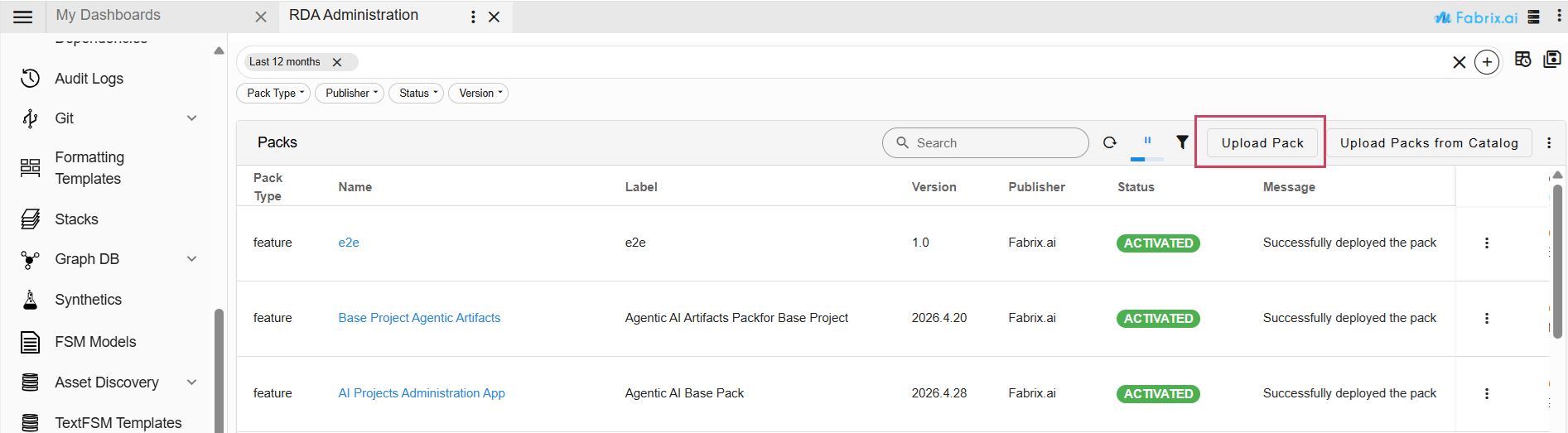
1. Navigation Path : Go to Main Menu → Configuration → RDA Administration → Packs → Upload Pack
Below is a summary of the current pack names and their respective versions
Pack Name |
Pack Version |
|---|---|
| AI Projects Administration App (tar file) | 2026.4.28 |
| Base Project Agentic Artifacts (tar file) | 2026.4.20 |
2. Upload the following pack.
- Pack Name: AI Projects Administration App
- Pack Version: 2026.4.28
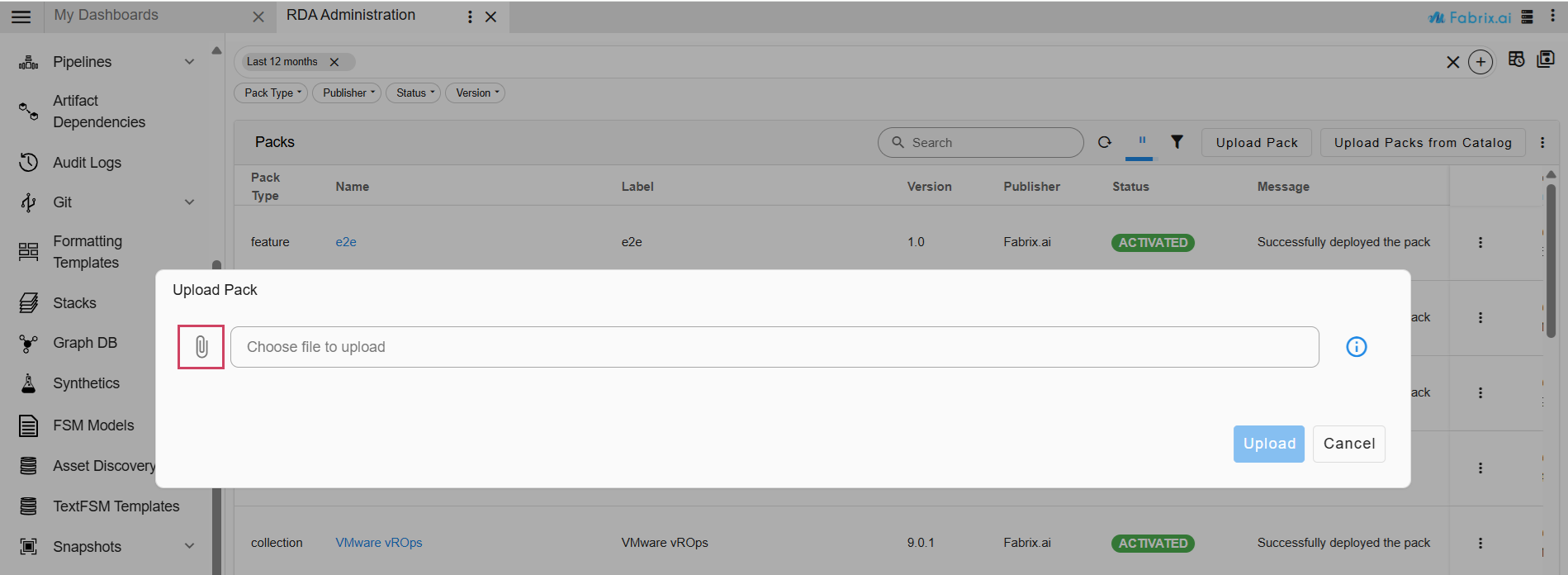
3. Activate the uploaded pack.
Important
If Base Project Agentic Artifacts pack is previously present in the setup, then we need to deactivate the previous base pack and then upload and activate the newer version Base Project Agentic Artifacts.
Requirements for Base Project Agentic Artifacts Pack
-
Ensure a valid license is added before activating the Base Project Agentic Artifacts Pack. The license can be added by navigating to Main Menu -> Administration → License.
-
Confirm that an organization is set up, along with the required user groups and users.
-
Note that the Base Project Agentic Artifacts Pack is supported only in single-tenant setups (i.e., setups with only one organization).
4. Navigation Path : Go to Main Menu → Configuration → RDA Administration → Packs → Upload Pack
5. Upload the following pack.
- Pack Name: Base Project Agentic Artifacts
- Pack Version: 2026.4.20
6. Activate this pack as well.
7. Once the pack is activated, restart the portal-backend to register the toolsets.
Note
Verify both packs are successfully activated before proceeding to the next steps.
Step 2. Execute Pipelines
Navigation Path : Go to Main Menu → Configuration → RDA Administration → Pipelines -> Draft Pipelines -> Add with Text Upon running this pipeline, the previous and shared conversations will be displayed in Fabaio.
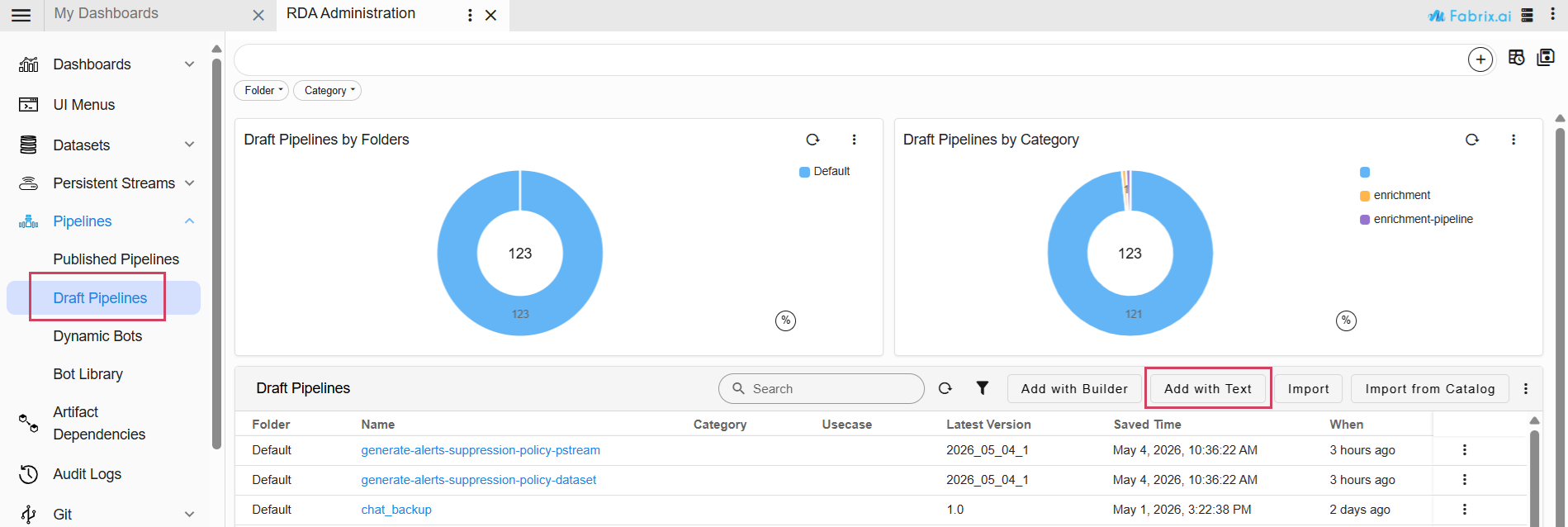
Provide Pipeline Name and Pipeline Version
The pipeline is used to back up previous conversations and shared conversations.
| Field | Value |
|---|---|
| Pipeline Name | chat_backup |
| Pipeline Version | 1.0 |
%% stream = no and limit = 0
## update chat sessions stream
@c:new-block
    --> @dm:empty
    --> @dm:addrow name="rda_chat_sessions" and limit=0 and aggs="cardinality:llm" and groupby="llm"
    --> #dm:query-persistent-stream
    --> @dm:save name="distinct-llm"

--> @c:data-loop dataset="distinct-llm" and columns="llm"
    --> @dm:empty
    --> @dm:addrow name="rda_chat_sessions" and columns="llm_credential_name" and values="$llm" and timeout=300
    --> #dm:pstream-update-data-by-query llm is '$llm'

## update shared conversations stream
--> @c:new-block
    --> @dm:empty
    --> @dm:addrow name="rda_shared_conversations" and limit=0 and aggs="cardinality:llm" and groupby="llm"
    --> #dm:query-persistent-stream
    --> @dm:save name="shared-conv-distinct-llm"

--> @c:data-loop dataset="shared-conv-distinct-llm" and columns="llm"
    --> @dm:empty
    --> @dm:addrow name="rda_shared_conversations" and columns="llm_credential_name" and values="$llm" and timeout=300
    --> #dm:pstream-update-data-by-query llm is '$llm'
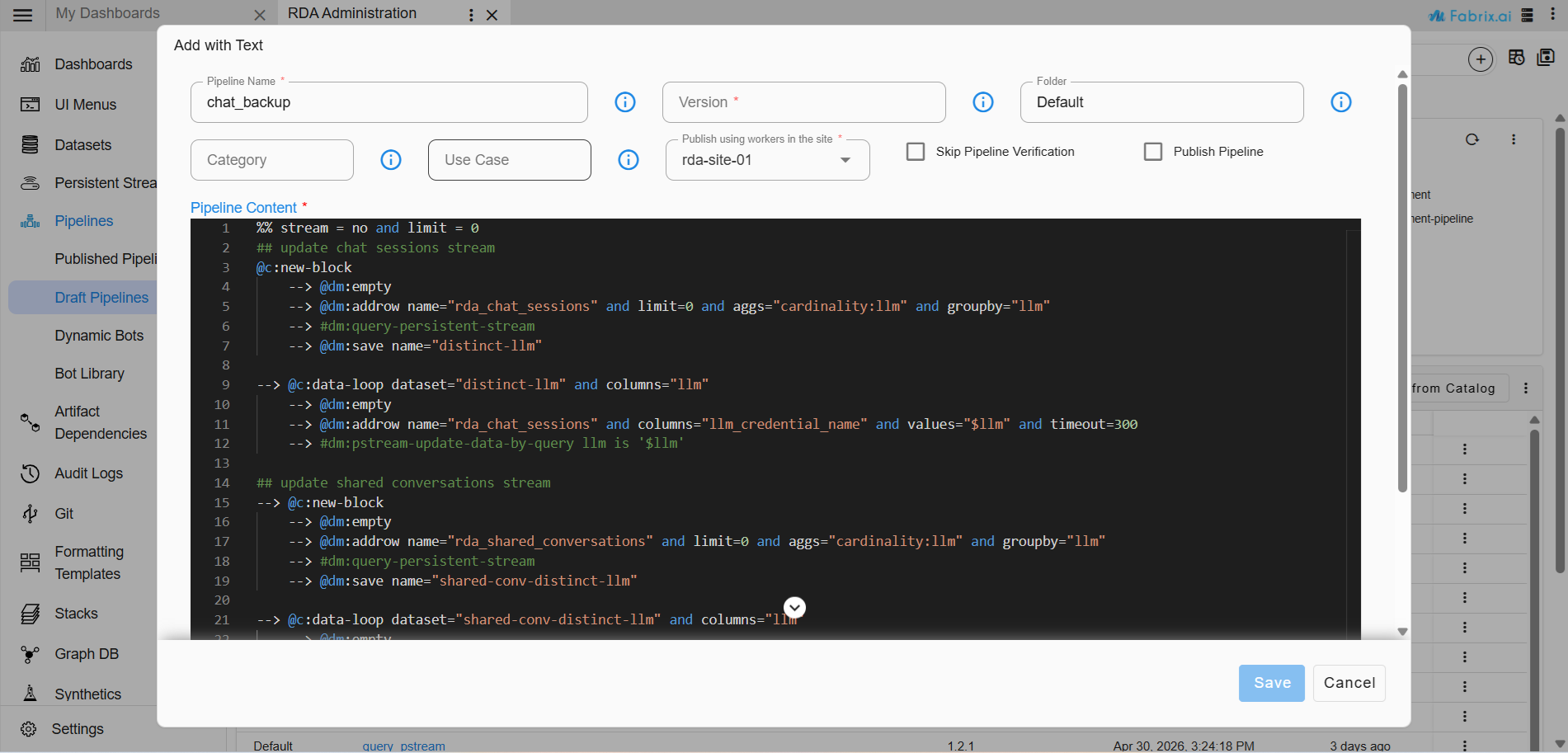
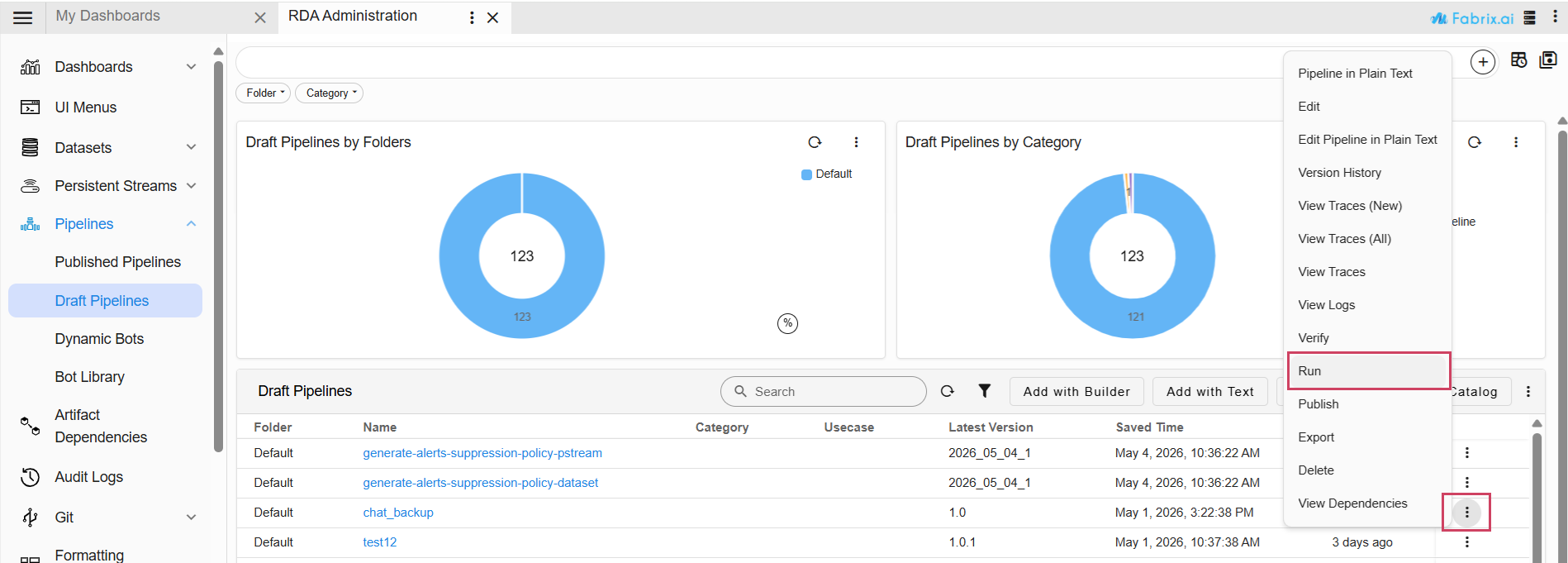
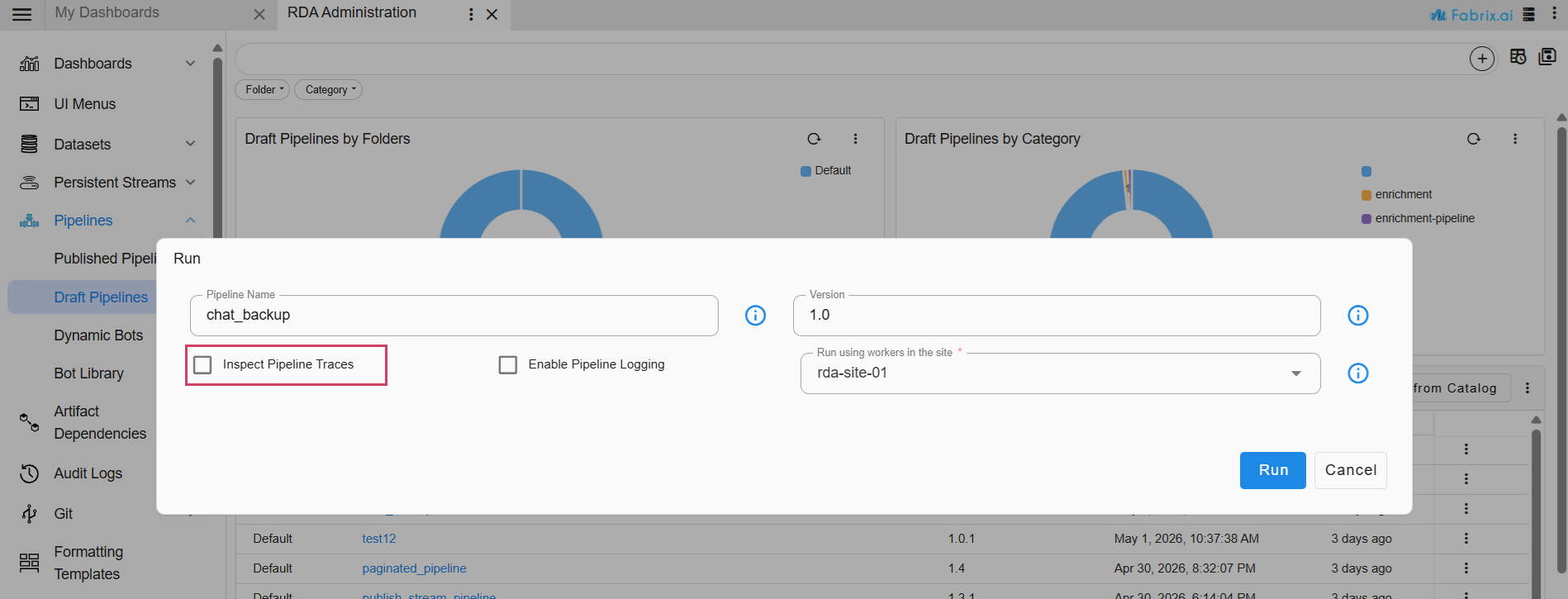
To execute a pipeline, click the three-dot menu corresponding to the pipeline below and select Run. If needed, enable Inspect Pipeline Traces for additional debugging. Ensure that the pipeline completes successfully before proceeding.
Note
1. Update the retention days of rda_chat_sessions stream to 180 days, aligning with the requirement since the previous version of ai_administration_app_projects pack had retention days of 31 days.
llm_model_costs dataset has required data and ingest the dataset to llm_model_costs pstream.